How to switch your Zoom, Google Meet, or Microsoft Teams account
Written By Brian Gabay
Last updated 8 days ago
If you disconnect your video conferencing account in Arrange and click Connect again, you may notice it signs you right back into the same account without showing a login page. This happens because your browser remembers who you’re already signed in as with Zoom, Google, or Microsoft, and passes that account along automatically.
The easiest way around this is to reconnect in a private (incognito) window, where no accounts are saved.
Step 1: Disconnect your current account
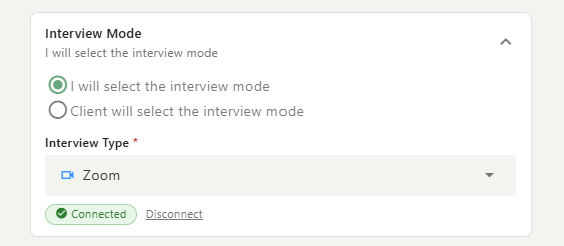
In your regular browser window, start scheduling an interview in Arrange and open the Interview Mode section. Under Interview Type, you’ll see your current account (Zoom, Google Meet, or Microsoft Teams) marked as Connected. Click Disconnect next to it.
Step 2: Open a private window
Chrome: Cmd + Shift + N (Mac) or Ctrl + Shift + N (Windows)
Safari: Cmd + Shift + N
Edge: Ctrl + Shift + N
Firefox: Cmd + Shift + P (Mac) or Ctrl + Shift + P (Windows)
Step 3: Log into Arrange in the private window
Go to app.arrangeai.io and sign in as you normally would.
Step 4: Connect the correct account
Open the Interview Mode section again, choose the platform you want from the Interview Type dropdown, and click Connect. The login page will now appear, so you can sign in with the account you want to use.
Step 5: Close the private window
Once it’s connected, close the private window and go back to Arrange in your regular browser. Your new account will already be connected. The connection is saved to your Arrange account, not your browser, so it carries over automatically.
Still connecting to the wrong account?
Double check that you signed into the right account in Step 4. If you need any help, reach out to us at support@arrangeai.io and we’ll get you sorted.
Was this helpful?
Still need help? Ask the team